If your laptop works perfectly while the charger is connected but shuts off the moment you unplug it, the battery is the obvious suspect.
But “bad battery” is still too broad a diagnosis.
A laptop that dies instantly when unplugged is not behaving the same way as one that runs for 20 minutes and suddenly drops from 45% to 0%. A battery that is completely missing from Windows is a different problem from one that is detected, reports 80%, and still cannot keep the laptop running.
There is also one easy-to-miss exception: some laptops may need AC power to wake after a long period of storage even when the battery itself is still usable.
So before you order a replacement, match your laptop to the symptom below. You can usually narrow the problem down much faster than by working through a generic list of battery fixes.
Laptop Only Works When Plugged In: Quick Answer
Start with what happens when you remove the charger:
Dies instantly
→ Check whether the battery is actually detected.
→ If it is detected, run the manufacturer’s battery test before buying a replacement.
Runs for a while, then suddenly shuts down
→ Check battery health and compare the reported charge with what the laptop can actually deliver.
Battery is missing or says “No battery”
→ Treat this as a battery-detection problem first, not simply an old battery.
Only needs the charger to start after sitting unused
→ Check for a model-specific storage or battery-protection behavior before assuming there is a fault.
Power cuts out when the charger or cable moves
→ Stop following the battery-only path. The charger, connector, or charging port needs attention instead.
Still works on battery, but the battery will not gain charge
→ Use the plugged-in-but-not-charging guide instead.
The battery percentage matters less than what the laptop actually does when AC power disappears.
In This Guide
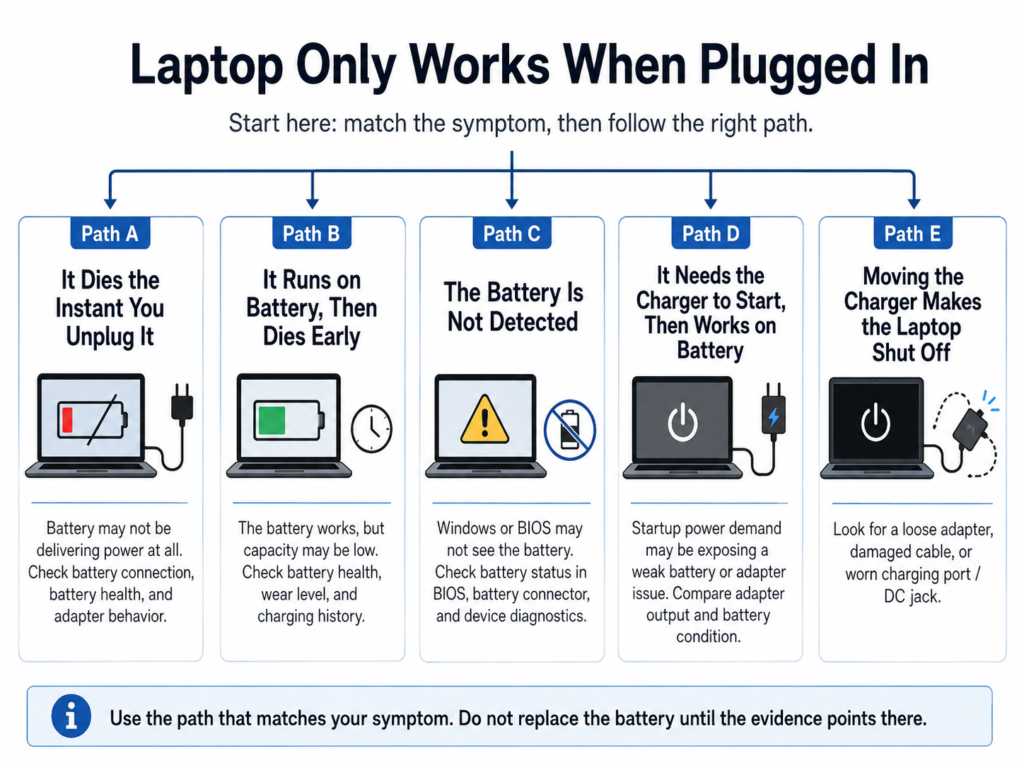
Start Here: Match the Symptom
| What happens | Strongest clue | Skip for now | Go to |
|---|---|---|---|
| Dies the instant you unplug it | Battery cannot deliver usable power or is not detected | Display and Windows startup fixes | Path A |
| Runs briefly, then suddenly dies | Battery may report charge it cannot actually sustain | Charger-port troubleshooting if AC is stable | Path B |
| Windows or BIOS cannot find the battery | Detection/connection problem | Buying a replacement based only on battery age | Path C |
| Needs AC only to start, then works unplugged | May be model-specific storage behavior | Assuming the battery is dead | Path D |
| Shuts off when the charging cable moves | Charger/connector/power-port path | Battery health troubleshooting | Path E |
The goal is not to try every fix on this page.
Find the row that matches your laptop, follow that path, and stop when the evidence points somewhere else.
If you are not sure whether this is really a battery-power problem, use our interactive Laptop Power Diagnostic to compare it with charging, shutdown, and black-screen symptoms.
Before You Unplug the Charger
Save anything you are working on first.
Then look at three things while the charger is still connected:
- What battery percentage does Windows show?
- Does Windows show a battery at all?
- Does the laptop behave normally while it is on AC power?
If the laptop also shuts down while the charger is connected, this page is no longer the best diagnostic path.
If the laptop turns on and then shuts off even with AC power connected, use the immediate-shutdown diagnostic guide.
If the laptop will not start at all, use the no-power diagnostic guide instead.
Path A: It Dies the Instant You Unplug It
This is the cleanest version of the problem.
The charger is supplying enough power to run the laptop, but the laptop loses power as soon as AC disappears.
Do not start with Windows settings.
First answer one question:
Does the laptop actually detect the battery?
If the Battery Is Detected
If Windows shows a battery percentage, that only proves the system can read battery information. It does not prove the battery can still deliver enough power to run the laptop.
Run the manufacturer’s battery diagnostic next.
You are looking for a result such as:
Normal / Good
Weak / Degraded
Replace / Poor
Hardware Failure
Unable to provide sufficient power
If the manufacturer’s diagnostic reports a battery failure or says the battery cannot provide sufficient power, you now have much stronger evidence for replacement than the symptom alone.
If the Battery Is Not Detected
Do not jump straight from “No battery” to “buy a battery.”
A battery that is not detected gives you a different problem to solve.
Start with a power reset, then check whether the battery appears in the manufacturer’s diagnostics or BIOS/UEFI.
If the battery remains missing there as well, Windows is no longer the main suspect.
On a laptop with an internal battery, do not open the case just to reseat it unless the manufacturer’s service manual covers the procedure and you are comfortable following it.
Path B: It Runs on Battery, Then Dies Early
This is different from an instant shutdown.
Suppose the laptop shows 60%, runs for ten minutes, suddenly falls to 8%, and shuts down.
That pattern tells you more than “battery life is bad.”
The useful question is whether the reported charge still matches the amount of energy the battery can actually deliver.
Run the manufacturer’s battery-health test first.
Then, if you use Windows, you can generate a battery report as a second piece of evidence.
Optional: Check the Windows Battery Report
Open Terminal or Command Prompt and run:
powercfg /batteryreport
Windows creates an HTML battery report.
Look at the reported design capacity, full charge capacity, recent usage, and battery history.
Do not use one number from this report as an automatic “replace the battery” rule. Use it together with the manufacturer’s hardware test and the laptop’s real behavior.
A battery that reports substantial charge but repeatedly shuts the laptop down unexpectedly is more meaningful than a slightly reduced capacity number by itself.
Path C: The Battery Is Not Detected
If Windows shows no battery, an X over the battery icon, or the manufacturer’s diagnostic says no battery is present, separate detection from battery health.
Use this order:
- Shut the laptop down.
- Disconnect the charger and accessories.
- Perform the manufacturer-recommended power or static reset.
- Reconnect AC power.
- Check the battery again in Windows.
- Check whether the BIOS/UEFI or manufacturer diagnostic can see it.
If Windows cannot see the battery but the manufacturer’s hardware tools can, continue with the model-specific Windows or battery-driver troubleshooting.
If the battery is missing from both Windows and the hardware-level diagnostic, stop treating this as a normal battery-runtime problem.
Path D: It Needs the Charger to Start, Then Works on Battery
Do not automatically call the battery dead if the laptop only needs AC power to wake up but then runs normally after you unplug it.
First ask when this happens.
Did the laptop sit powered off for days or weeks?
Was the battery already low before storage?
Does the problem disappear after connecting AC and charging normally?
Some laptops have model-specific battery protection or storage behavior that can produce exactly this pattern.
For example, Dell documents a Battery Storage Mode in which supported laptops may require the AC adapter to wake after extended inactivity or a low-charge condition.
If the laptop then runs normally on battery, that is a very different result from a laptop that dies immediately every single time AC is removed.
Check the support documentation for your exact model before replacing the battery based on the startup behavior alone.
Path E: Moving the Charger Makes the Laptop Shut Off
This symptom changes the diagnosis.
If the laptop shuts off when the charger plug or cable moves, especially while the battery cannot keep it alive, do not spend the next hour reinstalling battery drivers.
Watch what happens when the connection moves.
Does the charging icon disappear?
Does the charging LED flicker?
Does the laptop lose power immediately?
Does charging work only at one angle?
That points you back toward the adapter, cable, connector, or charging port.
If the laptop stays on normally when plugged in but the battery also refuses to charge, switch to the plugged-in-but-not-charging guide.
What You Can Skip Based on the Result
| If you already know this | You can usually stop chasing | Focus on |
|---|---|---|
| Battery fails the manufacturer diagnostic | Generic Windows power tweaks | Battery replacement/service |
| Battery is absent in BIOS/UEFI too | Ordinary battery-life optimization | Detection, connection, hardware |
| Laptop runs normally after AC wakes it from long storage | Immediate battery replacement | Model-specific storage behavior |
| Moving the charger cuts power | Display, RAM, and Windows startup fixes | Charger/port/power connection |
| Laptop also shuts off while AC remains connected | Battery-only diagnosis | Immediate-shutdown path |
When a Battery Replacement Actually Makes Sense
A replacement becomes much easier to justify when several clues agree:
The laptop works normally on AC power.
The battery is detected.
The laptop cannot stay powered on from the battery.
The manufacturer’s battery test reports poor health, insufficient power, replacement required, or a hardware failure.
That is much stronger evidence than replacing the battery simply because the laptop is a few years old.
If the battery passes its hardware test but the laptop still cannot use battery power, do not keep buying batteries. The connection, charging/power circuitry, or another hardware problem may need diagnosis.
Stop Here If the Battery Is Swollen
If the laptop case is separating, the trackpad or keyboard looks raised, or the battery is visibly swollen, stop troubleshooting.
Turn the laptop off, disconnect AC power, and follow the manufacturer’s battery-service guidance.
Do not press, puncture, flatten, or keep charging a swollen battery just to finish the tests on this page.
The Fastest Decision
If you remember only one thing from this guide, use this:
Dies instantly + battery detected + battery test fails
→ Battery replacement is the leading next step.
Dies instantly + battery not detected
→ Diagnose battery detection before buying anything.
Runs for a while + charge drops unpredictably
→ Compare battery health, battery report, and actual runtime.
Needs AC only after long storage, then runs normally
→ Check model-specific storage behavior.
Power disappears when the cable moves
→ Leave the battery path and inspect the power connection.
Also shuts down while still plugged in
→ This is not just a battery-only problem.
Common Questions
Why does my laptop turn off immediately when I unplug it?
The battery may be unable to supply usable power even if Windows still shows a charge percentage. First check whether the battery is detected, then run the manufacturer’s battery diagnostic.
Can a laptop battery show 100% and still be bad?
A displayed percentage does not prove that the battery can sustain the laptop under load. Unexpected shutdowns and a failed hardware battery test are stronger evidence of a battery problem.
Why does my laptop say no battery even though one is installed?
Treat that as a detection problem first. Perform the manufacturer-recommended power reset and check whether the battery appears in the BIOS/UEFI or hardware diagnostics before deciding what needs replacement.
Should I reinstall Windows because my laptop only works when plugged in?
Not as a first step.
If removing AC power causes an immediate hardware-level shutdown, first determine whether the battery is detected and whether it passes its hardware diagnostic. A Windows reinstall does not answer either question.
Final Checklist
□ Save your work before unplugging AC.
□ Note the battery percentage.
□ Check whether the battery is detected.
□ Observe whether shutdown is instant or delayed.
□ Run the manufacturer’s battery diagnostic.
□ Use Windows Battery Report only as supporting evidence.
□ Check for model-specific storage behavior if AC is needed only to wake the laptop.
□ Leave the battery path if moving the charger cuts power.
□ Do not replace parts randomly when the evidence points somewhere else.
□ Stop using the laptop if the battery is swollen.
Related Guides
Laptop Plugged In but Not Charging? What to Check First
Laptop Turns On Then Immediately Shuts Off? What to Check First
Laptop Won’t Turn On but Charging Light Is On? What to Check First
Official Support References
HP: The Battery Doesn’t Charge or Power the Laptop
Dell: How to Check Battery Health Status on Dell Laptops
Dell: Battery Storage Mode
Lenovo: Troubleshooting Battery Issues
Microsoft: Powercfg Battery Report