Your laptop is plugged in, but the battery is not charging.
Before you blame the battery, look at exactly what the percentage is doing.
A laptop that stops at 80% every day is not showing the same problem as one stuck at 0%. A machine that loses battery while plugged in under heavy load points in a different direction again. And if charging cuts in and out when you move the cable, software troubleshooting should move way down the list.
So don’t work through a generic list of battery fixes from top to bottom.
Match the charging pattern first. In many cases, that tells you which checks matter—and which ones you can skip.
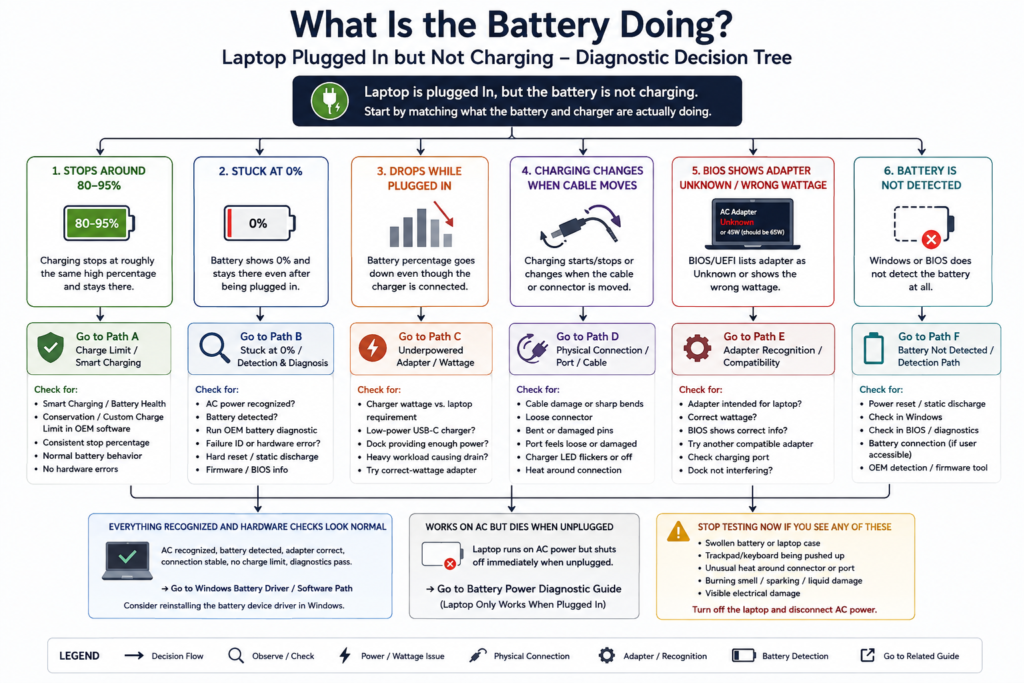
Laptop Plugged In but Not Charging: Quick Answer
Start with what the battery percentage and charger connection are actually doing:
Stops around 80–95% and stays there
→ Check Smart Charging, battery-health settings, or a manufacturer charge limit before assuming anything is broken.
Stuck at 0% even after being plugged in
→ Confirm that the AC adapter and battery are both detected, then run the manufacturer’s battery and adapter diagnostics.
Battery percentage drops while plugged in during heavy use
→ Check charger wattage and compatibility. The adapter may be powering the laptop without supplying enough extra power to charge the battery.
Charging starts and stops when the cable moves
→ Leave the software path. Focus on the charger cable, connector, and charging port.
BIOS shows the adapter as Unknown or the wrong wattage
→ Focus on adapter compatibility, the charger, and the charging-port connection before reinstalling Windows battery drivers.
Battery is not detected at all
→ Treat this as a battery-detection problem, not just a charging problem.
Laptop charges normally but dies as soon as you unplug it
→ Follow the laptop-only-works-when-plugged-in diagnostic path instead.
“Plugged in but not charging” is a symptom, not a diagnosis. The percentage, adapter status, and connection behavior tell you which path to follow.
In This Guide
Start Here: Match the Charging Pattern
| What you see | Strongest first clue | Skip for now | Go to |
|---|---|---|---|
| Stops around 80–95% | Charge limit may be intentional | Battery replacement | Path A |
| Stuck at 0% | Charging/battery recognition needs checking | Generic battery-life tweaks | Path B |
| Battery drops while plugged in | Adapter may be underpowered | Random driver reinstalls | Path C |
| Charging changes when cable moves | Physical power connection | Windows fixes | Path D |
| BIOS says adapter Unknown/wrong wattage | Adapter recognition problem | Blaming battery first | Path E |
| Battery is not detected | Detection/connection issue | Normal charging optimization | Path F |
Do not work through every path.
Pick the row that matches what the laptop is actually doing. Once the evidence points toward a charge limit, adapter problem, physical connection, or battery-detection issue, stop spending time on fixes meant for the other paths.
Not sure which path matches your laptop? Use our interactive Laptop Power Diagnostic to narrow the problem down before trying more fixes.
Before You Change Anything
Take thirty seconds and record the current state before restarting the laptop or changing drivers.
Check:
- The exact battery percentage
- Whether the percentage is rising, falling, or completely stuck
- Whether Windows recognizes that AC power is connected
- Whether the battery itself is detected
- Whether the charging light is steady, blinking, or off
- Whether charging changes when the cable moves
- Whether the charger is the correct wattage for the laptop
- Whether the laptop works normally when unplugged
Those answers are more useful than the words “not charging” by themselves.
If the laptop works normally on AC power but shuts off the moment you unplug it, use our laptop-only-works-when-plugged-in diagnostic guide instead.
Path A: It Stops Charging Around 80–95%
If the battery repeatedly stops at roughly the same high percentage, do not start by replacing the battery.
First ask whether the laptop is intentionally limiting the charge.
Some laptops use Smart Charging, conservation modes, battery-health settings, or custom charge thresholds to reduce how long the battery sits near a full charge.
Look for a battery or power-management setting from the laptop manufacturer before treating the limit as a failure.
How to Tell if the Limit Is Intentional
The strongest clues are consistency and normal battery behavior.
If the laptop:
- Stops at roughly the same percentage every time
- Works normally on battery
- Does not show a battery hardware failure
- Charges again when the percentage falls below the configured threshold
then a charge-limit feature becomes much more plausible than a completely failed battery.
Do not disable a battery-health feature permanently just to make the number say 100%. Change it only if you actually need a full charge and the manufacturer explains how the setting works on your model.
Path B: The Battery Is Stuck at 0%
A battery stuck at 0% is a very different case.
Now you need to separate three things:
- Is AC power actually being recognized?
- Is the battery detected?
- Can the battery pass its hardware diagnostic?
Start with the battery icon in Windows, then check the manufacturer’s hardware or BIOS information if your model provides it.
If AC Power Is Not Being Recognized
Do not start with the battery.
Reconnect the charger firmly, bypass any dock, and plug the charger directly into a known-working wall outlet.
Check the charger cable and connector for visible damage.
If the laptop supports charging through USB-C, make sure you are using a charging-capable port and a charger that meets the laptop’s actual power requirement.
If AC Is Recognized but the Battery Stays at 0%
Run the manufacturer’s battery diagnostic before buying a replacement.
A failed battery test, failure ID, or another model-specific hardware error is much stronger evidence than the 0% number by itself.
If the battery passes but still cannot charge, continue with adapter recognition and the charging path rather than replacing parts at random.
Path C: The Battery Drops While the Laptop Is Plugged In
This symptom often gets mistaken for a dead battery.
Instead, ask when the battery drops.
If it happens mainly during gaming, rendering, video work, or another heavy workload, compare the charger’s wattage with what the laptop actually requires.
A charger can be connected and still be too weak for the job.
Check the Charger Wattage
Look at the wattage printed on the charger, then compare it with the power requirement for the exact laptop model.
Do not assume that a USB-C charger is powerful enough just because the connector fits.
A phone charger, small travel adapter, or low-power dock may use the correct connector while delivering far less power than the laptop expects.
If the correct-wattage charger is recognized properly and the battery still drops rapidly during ordinary light use, continue with battery-health and charging-system diagnostics.
Path D: Charging Cuts In and Out When the Cable Moves
This result should change your priorities immediately.
If the battery icon switches between charging and not charging when the cable moves, the charging LED flickers, or the plug only works at one angle, stop spending time on Windows battery settings.
Watch the physical connection instead.
Check for:
- A frayed or sharply bent cable
- A loose connector
- Bent or damaged pins
- A charging port that feels loose
- A charger LED that flickers or turns off
- Unusual heat around the connector or port
Do not keep bending or holding the cable at a special angle just to keep the laptop charging.
If the connection is visibly damaged, unusually hot, or unstable, stop here and have the charger or charging-port path inspected before continuing with software troubleshooting.
Path E: BIOS Shows the Adapter as Unknown or the Wrong Wattage
On laptops that report AC-adapter information in BIOS or UEFI, this is one of the most useful charging clues you can get.
If the adapter is listed as:
Unknown
Not detected
or the wrong wattage
do not start by reinstalling the Windows battery driver.
The laptop itself is telling you that adapter recognition is not normal.
What to Check Next
Verify:
- The charger is intended for the laptop
- The wattage matches the model requirement
- The cable and connector are undamaged
- The charging port has a stable connection
- A dock is not interfering with power delivery
If you have access to another manufacturer-approved charger with the correct specification, that can be a useful comparison test.
Do not buy a battery just because the laptop is not charging while the adapter itself is being reported incorrectly.
Path F: The Battery Is Not Detected
“No battery detected” is not the same problem as “battery detected but not charging.”
Separate those before you continue.
If Windows does not detect the battery:
- Shut the laptop down.
- Disconnect external accessories.
- Perform the manufacturer-recommended power or static reset.
- Restart the laptop.
- Check whether the battery appears in Windows.
- If your model exposes battery information in BIOS, UEFI, or hardware diagnostics, check there too.
If Windows cannot see the battery but the manufacturer’s hardware tools can, continue with the model-specific Windows or battery-driver path.
If the battery is missing at the hardware level too, stop treating the problem as ordinary charging optimization.
When a Windows Battery Driver Check Is Actually Worth Trying
Do not make the battery driver your first move.
It becomes more reasonable when:
- The charger is physically stable
- The correct adapter is being recognized
- The battery is detected
- There is no obvious charge-limit explanation
- Hardware diagnostics do not already identify a battery or adapter failure
At that point, Windows battery-device troubleshooting is worth trying.
Reinstall the Windows Battery Device
- Right-click Start.
- Open Device Manager.
- Expand Batteries.
- Right-click Microsoft ACPI-Compliant Control Method Battery.
- Choose Uninstall device.
- Restart the laptop.
Windows should reinstall the battery device automatically after the restart.
What You Can Skip Once You Know the Pattern
| If you already know this | Stop spending time on | Focus on |
|---|---|---|
| Stops consistently at 80–95% | Immediate battery replacement | Charge-limit / Smart Charging settings |
| Battery stays at 0% | Generic battery-life tips | Detection + hardware diagnostics |
| Battery drops only under heavy load | Random driver reinstalls | Adapter wattage / power delivery |
| Cable movement changes charging | Windows fixes | Charger / connector / port |
| BIOS says adapter Unknown | Blaming the battery first | Adapter recognition / charging port |
| Battery is not detected | Normal charging optimization | Detection / hardware path |
| Laptop dies only when unplugged | General not-charging path | Battery-power guide |
When the Battery Itself Becomes the Leading Suspect
A battery replacement becomes easier to justify when multiple clues agree.
For example:
- The correct charger is recognized
- The charging connection is stable
- No intentional charge limit explains the behavior
- The battery is detected
- The manufacturer’s battery diagnostic reports a failure or replacement condition
That is much stronger evidence than replacing the battery simply because the laptop says “not charging.”
If the battery passes its diagnostic but the adapter is not recognized correctly, the evidence points somewhere else.
Stop Here if the Battery Is Swollen or the Power Connection Is Damaged
Stop troubleshooting if:
- The battery or laptop case is visibly swollen
- The trackpad or keyboard is being pushed upward
- The charging port or connector is unusually hot
- You smell burning
- You see sparking or visible electrical damage
- Liquid has entered the charging area
Turn the laptop off and disconnect AC power.
Do not keep charging a physically damaged or swollen battery just to finish the tests on this page.
The Fastest Decision
Use this as the short version:
Stops at 80–95% every time
→ Check Smart Charging or the manufacturer’s charge limit first.
Stuck at 0%
→ Check AC recognition, battery detection, and hardware diagnostics.
Battery drops while plugged in under heavy load
→ Check charger wattage and power delivery.
Charging changes when the cable moves
→ Leave the Windows path and inspect the physical power connection.
BIOS says adapter Unknown or shows the wrong wattage
→ Diagnose the charger / port / adapter-recognition path.
Battery is not detected
→ Diagnose detection before ordinary charging behavior.
Everything is recognized and hardware checks look normal
→ Windows battery-device troubleshooting becomes reasonable.
Works on AC but dies the moment you unplug it
→ Move to the battery-power diagnostic guide.
Common Questions
Why is my laptop plugged in but not charging?
The answer depends on the exact charging pattern.
A charge limit, underpowered adapter, unstable cable or port, adapter-recognition problem, battery-detection issue, Windows battery-device problem, or failed battery can all produce some version of “not charging.”
Start with the percentage and adapter status instead of replacing the battery first.
Why does my laptop stop charging at 80%?
A battery-health or Smart Charging feature may be intentionally limiting the charge.
If it stops at roughly the same percentage every time and the battery otherwise works normally, check the manufacturer’s battery settings before treating it as a failure.
Can the battery drain even while the charger is connected?
Yes.
If the charger cannot provide enough power for the laptop’s current workload, the battery may charge slowly, stop charging temporarily, or continue losing charge while the adapter remains connected.
Does “plugged in, not charging” mean the battery is bad?
No.
The battery becomes a stronger suspect only after the charger, adapter recognition, charging connection, charge-limit settings, battery detection, and hardware diagnostics point in that direction.
Should I reinstall the battery driver first?
Usually not.
Check the physical connection, charger compatibility, adapter recognition, battery detection, and charge-limit behavior first.
A Windows battery-device reinstall becomes more useful after those paths look normal.
Final Checklist
□ Record the exact battery percentage.
□ Check whether it repeatedly stops at the same high percentage.
□ Confirm that AC power is recognized.
□ Confirm that the battery itself is detected.
□ Check whether charging changes when the cable moves.
□ Compare charger wattage with the laptop’s requirement.
□ Check adapter status in BIOS/UEFI if your model provides it.
□ Run the manufacturer’s battery and adapter diagnostics.
□ Use Windows battery-driver troubleshooting only after the hardware path looks normal.
□ Do not replace the battery based on “not charging” alone.
□ Switch to the battery-power guide if the laptop dies only when unplugged.
□ Stop testing if there is swelling, burning, unusual heat, or visible electrical damage.
Related Guides
Laptop Won’t Turn On but Charging Light Is On? What to Check First
Laptop Turns On but Screen Is Black? What to Check First
Laptop Turns On Then Immediately Shuts Off? What to Check First
Laptop Only Works When Plugged In? Diagnose the Battery Before Replacing It
Official Support References
Microsoft: Use Smart Charging in Windows
Dell: Laptop Battery Not Charging and AC Adapter Troubleshooting
Dell: How to Troubleshoot Laptop Battery Issues
HP: Battery Check and Laptop Charging Troubleshooting
HP: Using and Troubleshooting the AC Adapter
Lenovo: Battery Cannot Be Charged in Windows