Your device says it is connected to Wi-Fi, but websites will not load, apps cannot get online, or the network shows No Internet.
The Wi-Fi connection itself may be working perfectly.
Wi-Fi only connects your device to the local network. The failure can still be on your device, between your device and the router, between the router and your ISP, or in something like DNS, a VPN, proxy, or public-network login.
So don’t start by resetting everything.
First answer one question:
Can another device use the same Wi-Fi right now?
That single test eliminates a huge amount of unnecessary troubleshooting.
WiFi Connected but No Internet: Quick Answer
Start with another phone, laptop, tablet, or TV on the same Wi-Fi network.
Other devices work normally
→ The router and ISP are probably providing internet access. Focus on the affected device.
Nothing on the Wi-Fi can get online
→ Stop changing settings on one laptop or phone. Focus on the router, modem, or ISP connection.
Some websites or apps work, but others do not
→ Look at DNS, VPN, proxy, firewall, filtering, or the specific service.
You are on hotel, airport, café, school, or other public Wi-Fi
→ Check whether the network requires a sign-in or terms page before internet access is allowed.
Windows shows an address beginning with 169.254
→ The computer did not receive a normal IP address from the router. Focus on the local router/DHCP connection.
Internet returns after rebooting the router but fails again later
→ Treat that as a recurring network-stability problem, not a one-time device glitch.
The fastest test is not restarting the router. It is finding out whether the problem affects one device or the whole network.
In This Guide
Start Here: Test One Other Device
Use a second device that is already connected to the same Wi-Fi.
Try to open a normal website.
| What happens | What it tells you first | Skip for now | Go to |
|---|---|---|---|
| Other device works | Network has internet; one device is affected | ISP troubleshooting | Path A |
| Other device also fails | Network-wide problem | Reinstalling one device’s Wi-Fi driver | Path B |
| Only some sites/apps fail | Internet path is partly working | Full router reset | Path C |
| Public Wi-Fi asks for sign-in | Captive portal | Router hardware troubleshooting | Path D |
| Windows IP starts with 169.254 | Device did not get a normal router IP | DNS changes first | Path E |
| Router reboot fixes it temporarily | Recurring router/ISP stability issue | Repeated device resets | Path F |
Do not work through every path.
Once you know whether the failure affects one device, every device, or only part of the internet connection, follow only that branch.
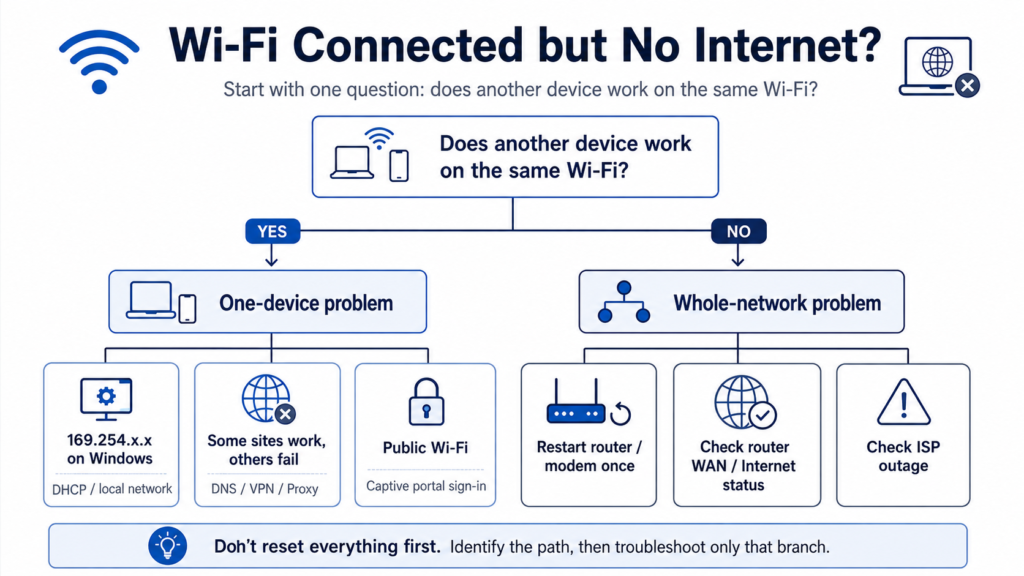
Path A: Other Devices Work, but This Device Has No Internet
If another device can use the same Wi-Fi normally, that is strong evidence that the internet connection exists.
Your affected device becomes the better place to troubleshoot.
Start with the least destructive checks.
Reconnect to the Wi-Fi Network
Turn Wi-Fi off on the affected device, wait a few seconds, then turn it back on and reconnect.
If that changes nothing, forget the saved network and reconnect only if you know the Wi-Fi password.
Do not reset every network setting yet.
Check VPN, Proxy, or Security Software
If the device says Wi-Fi is connected but websites still fail, temporarily check whether a VPN, manually configured proxy, or security/network-filtering software is involved.
Microsoft notes that a connected Windows PC can still have problems caused by a specific app, firewall, or proxy, and Apple specifically includes VPN/security software in its Wi-Fi troubleshooting guidance.
If disabling one of those immediately restores internet access, stop changing router settings.
You already have evidence that the problem is device-side.
On Windows, Run the Network Troubleshooter
On Windows 11, use the Network and Internet troubleshooter in Get Help.
Microsoft currently recommends this as an early automated diagnostic for Windows Wi-Fi problems.
Check Whether Windows Received a Normal IP Address
On Windows, open Command Prompt and run:
ipconfig
Look for the Wi-Fi adapter’s IPv4 address.
If it begins with:
169.254.
move to Path E.
Microsoft states that this type of address means Windows did not obtain a normal IP address from the router.
Path B: No Devices on the Wi-Fi Have Internet
If your phone, laptop, tablet, and other devices all lose internet on the same Wi-Fi, stop troubleshooting one device.
The problem has moved upstream.
Now ask:
Is the Wi-Fi network itself still visible and connected?
If yes, your devices may still be communicating with the router even though the router no longer has working internet access.
Restart the Router or Modem Once
A normal restart is reasonable here.
Do not factory-reset it.
Restart the network equipment using the manufacturer’s normal restart procedure and allow it time to reconnect.
Android and Apple both recommend restarting the router/network equipment when multiple devices cannot access the internet.
If internet returns and stays stable, stop.
If it does not return, continue.
Check the Router’s Internet or WAN Status
If you are comfortable opening the router’s normal status page, look for whether the router has an internet/WAN connection.
Router menus vary by manufacturer, so do not copy settings from a different router model.
TP-Link’s own troubleshooting, for example, distinguishes a router that has received a valid WAN IP address from one whose internet/WAN address is missing or 0.0.0.0.
If the router itself does not have an internet connection, changing DNS or reinstalling a laptop Wi-Fi driver is not the right first move.
Check for an ISP Outage
If every device is affected and restarting the equipment does not restore the WAN/internet connection, check your ISP’s outage information or contact the provider.
Apple’s current guidance specifically recommends testing other devices; if none can get online, it may be a service outage and the ISP is the next escalation point.
Path C: Some Websites or Apps Work, but Others Do Not
This is not the same as having no internet at all.
If Google works but another site does not, or a browser works while one app fails, your connection is already passing at least some internet traffic.
That makes a total ISP outage less likely.
Check:
- Whether the failing service itself is down
- Whether a VPN is active
- Whether a manual proxy is configured
- Whether security software or filtering is blocking the connection
- Whether DNS resolution appears to be failing
Microsoft explicitly notes that a Wi-Fi connection can be online while a specific app, website, or firewall still causes connectivity problems.
On Windows, Flush DNS Only When This Path Fits
If the connection works partially but domain names are behaving strangely, Windows provides:
ipconfig /flushdns
Microsoft lists DNS cache flushing as one of its troubleshooting steps for a connected Wi-Fi network with no detected internet access.
Do not make DNS changes the first thing you do when every device in the house is completely offline.
That is a different path.
Path D: Public Wi-Fi Is Connected but Has No Internet
Hotels, airports, cafés, campuses, and other public networks may connect your device to Wi-Fi before giving you internet access.
They can require a captive portal—a sign-in, payment, or terms-and-conditions page.
Apple describes these networks as Wi-Fi networks that require a login screen before internet access is granted.
If you are on public Wi-Fi:
- Disconnect and reconnect to the network.
- Wait for the login or welcome page.
- Complete any required sign-in or terms.
- If the page does not appear, use the network provider’s documented sign-in method.
Do not restart or factory-reset a hotel or café router.
It is not your equipment.
Path E: Windows Shows a 169.254.x.x Address
This is one of the most useful Windows clues.
A 169.254.x.x address means Windows did not receive a normal IP configuration from the router.
Microsoft specifically points to this range as evidence that the router did not provide the PC with an IP address.
That means DNS is not the first problem to chase.
Try Renewing the IP Configuration
Microsoft documents these commands for a connected Wi-Fi network with limited/no internet access:
ipconfig /release
ipconfig /renew
Then check the address again.
If you still receive 169.254.x.x, the PC is still failing to obtain a normal router address.
At that point, focus on:
- reconnecting to the Wi-Fi network
- restarting the network adapter/device
- checking the router’s DHCP/network status
- comparing the result with another device
Do not spend the next hour changing browser settings.
Path F: Restarting the Router Fixes It, but the Problem Comes Back
A router restart that repeatedly restores internet for a short time is useful evidence.
It means the problem is not simply “this laptop forgot the Wi-Fi password.”
Now look for the pattern.
Does the entire household lose internet?
Does only Wi-Fi fail while a wired connection still works?
Do both wired and wireless devices fail?
Does it happen under heavy use?
Does the router show an internet/WAN disconnect?
TP-Link’s current troubleshooting guidance treats “all wireless devices lose internet while Wi-Fi remains connected” and “both wired and wireless connections become unstable” as different cases, and recommends ISP/network-status investigation when the upstream connection is unstable.
If the problem keeps returning, collect the pattern before repeatedly rebooting the equipment.
That information is far more useful when contacting the ISP or router manufacturer.
What You Can Skip Once You Know the Scope
| If you already know this | Stop spending time on | Focus on |
|---|---|---|
| Other devices work | ISP outage troubleshooting | Affected device |
| Every device fails | Reinstalling one laptop’s driver | Router/modem/ISP |
| Only one app/site fails | Full network reset | App, VPN, proxy, DNS, filtering |
| Public Wi-Fi needs login | Home-router fixes | Captive portal |
| Windows has 169.254.x.x | Browser/DNS tweaks first | DHCP/local network |
| Router reboot fixes everyone temporarily | Resetting each device | Network stability |
When a Network Reset Makes Sense
A full network reset is not a good first step because it can remove saved Wi-Fi networks and other network configuration.
Apple explicitly warns that Reset Network Settings removes saved Wi-Fi networks/passwords and other network settings, and recommends it only after earlier troubleshooting has failed.
Use destructive reset options only after the symptom has clearly stayed on the affected-device path and simpler checks have failed.
When to Contact Your ISP
Contact the ISP when:
- multiple devices have no internet
- the router cannot obtain an internet/WAN connection
- restarting the network equipment does not restore service
- the connection repeatedly drops across wired and wireless devices
- the ISP’s own status information shows an outage
- your router appears connected locally but cannot reach the provider network
Do not spend hours resetting phones and laptops when every device fails at the same time.
The Fastest Decision
Use this as the short version:
One device fails, others work
→ Device path.
Every device fails
→ Router / modem / ISP path.
Some sites or apps work
→ DNS / VPN / proxy / filtering / service-specific path.
Hotel or public Wi-Fi
→ Captive portal path.
Windows shows 169.254.x.x
→ DHCP / local router connection path.
Router reboot fixes everyone, then the failure returns
→ Recurring router / ISP stability path.
Common Questions
Why does Wi-Fi say connected when there is no internet?
Because Wi-Fi connectivity and internet connectivity are not the same thing.
Your device can successfully connect to the local router while the router itself has no working upstream internet connection. Microsoft explicitly describes this as a PC being connected to the local network but not to the internet.
Why does Wi-Fi work on my phone but not my laptop?
If the phone works on the same Wi-Fi at the same time, the network is clearly providing internet to at least one device.
That makes the affected laptop’s saved network, IP configuration, VPN/proxy, adapter, or operating-system network path more relevant than an ISP-wide outage.
Should I restart the router first?
Not always.
Check one other device first.
If every device is offline, restarting the router is reasonable. If every other device works normally, restarting the entire household network may not be necessary.
Should I change DNS?
Only when the symptom supports that path.
DNS becomes more relevant when the underlying internet connection exists but domain-name access is failing or behaving inconsistently.
It should not be the automatic first fix for every “connected, no internet” problem.
Should I factory-reset my router?
Not as an early troubleshooting step.
A factory reset can erase the router configuration and may require you to reconfigure the internet connection and Wi-Fi settings.
Start by identifying whether the problem belongs to one device, the local network, or the ISP.