Your laptop won’t turn on, but the charging light comes on when you connect the adapter.
That detail matters—but it does not tell you which part failed.
A laptop with only a charging light is a different problem from one that spins the fan, lights the keyboard, shows a manufacturer logo, or powers on for two seconds and shuts back off.
So don’t start by trying every laptop fix you can find.
Press the power button once and watch exactly what happens. The quickest path depends on the first sign of life you get.
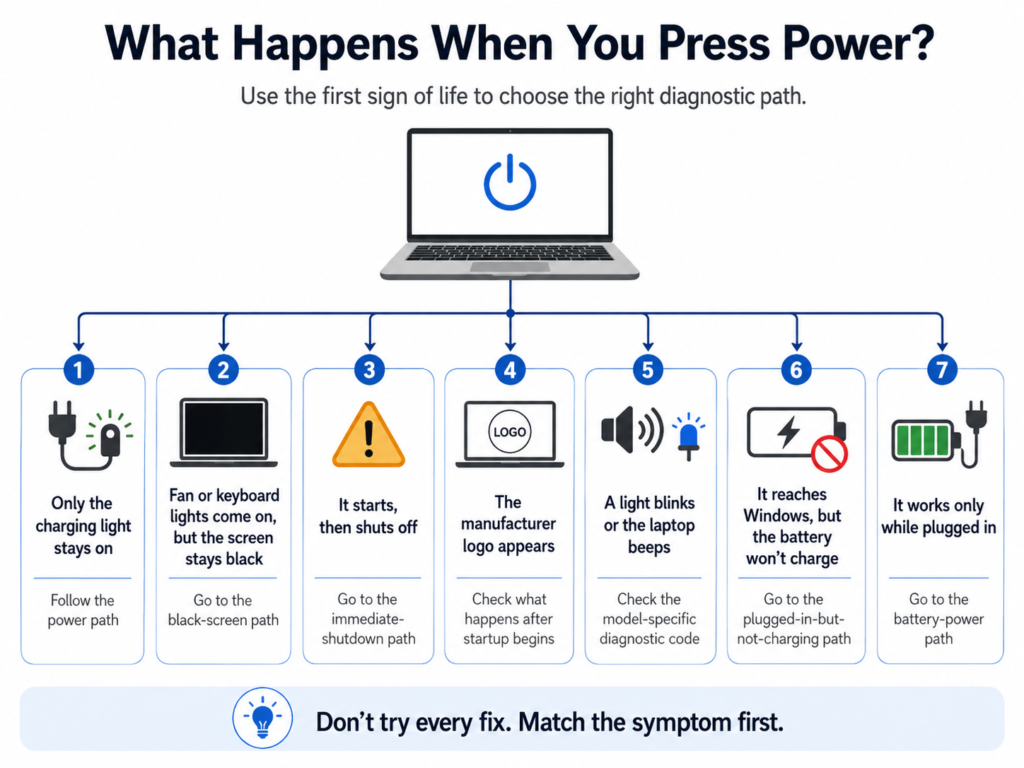
Laptop Won’t Turn On but Charging Light Is On: Quick Answer
Start with what happens when you press the power button:
Nothing changes except the charging light
→ Follow the no-start power path on this page.
The fan or keyboard lights come on, but the screen stays black
→ Stop treating it as a simple no-power problem. Follow the black-screen path.
The laptop starts for a second or two and shuts off
→ Follow the immediate-shutdown path.
The manufacturer logo appears
→ The laptop is getting farther through startup than a true no-power system. Note what happens next instead of repeating charger tests.
Lights blink in a pattern or the laptop beeps
→ Record the exact pattern before doing anything else. It may be a built-in hardware diagnostic code.
The laptop reaches Windows but the battery will not charge
→ Follow the plugged-in-but-not-charging path instead.
The laptop works normally on AC but dies when you unplug it
→ Follow the battery-power path instead.
The charging light tells you that part of the power path is responding. What happens after you press Power tells you where to look next.
In This Guide
Start Here: Match What You See
| When you press Power | What that changes | Skip for now | Go next |
|---|---|---|---|
| Only charging light remains on | Laptop is not reaching an obvious startup state | Windows repair, graphics-driver fixes | Path A |
| Fan or keyboard lights stay on, screen black | Power is present; display/POST needs separation | Repeating basic charger tests | Path B |
| Laptop starts, then shuts off | Shutdown timing becomes the useful clue | Black-screen-only troubleshooting | Path C |
| Manufacturer logo appears | System has progressed beyond the earliest no-power state | Repeating outlet tests unless power is unstable | Path D |
| LED pattern or beep code repeats | Laptop may be reporting a hardware fault | Random part swapping | Path E |
Do not work through every path.
Pick the row that matches what the laptop actually does and follow only that branch. If the symptom changes, move to the branch that matches the new result.
Not sure which path matches your laptop? Use our interactive Laptop Power Diagnostic to narrow the problem down before trying more fixes.
Path A: The Charging Light Is the Only Sign of Life
If pressing the power button produces no fan movement, no keyboard lights, no power light, no logo, and no sound, stay on this path.
At this point, Windows is irrelevant because the laptop has not shown evidence that it is getting that far.
Start with the few checks that can actually change this diagnosis.
Disconnect Everything External
Disconnect docks, USB drives, external monitors, SD cards, printers, and other nonessential devices.
Leave only the laptop and its power adapter.
Then try the power button once.
Use the Charger Directly From a Wall Outlet
Bypass the dock, power strip, and extension cord.
Connect the correct laptop charger directly to a wall outlet that you know works.
A charging light makes a completely dead outlet less likely, but it does not prove that the adapter, connector, or laptop power circuitry can support startup.
Perform a Power Reset
If nothing changes, perform a power reset.
- Disconnect the charger.
- Disconnect all external devices.
- Remove the battery only if it is designed to be removed without opening the laptop.
- Hold the power button for about 15 to 20 seconds.
- Reconnect the charger.
- Try to start the laptop again.
A power reset does not erase your personal files.
If the Battery Is Removable
If your laptop has a user-removable battery, there is one useful isolation test:
Shut the laptop down, disconnect AC power, remove the battery, reconnect the charger, and try to start the laptop on AC power alone.
If it starts now, the battery path becomes much more suspicious.
If it still shows only the charging light, do not assume the battery caused the problem.
Path B: Fan or Keyboard Lights Come On, but the Screen Is Black
This is the point where a lot of troubleshooting goes off track.
If the fan keeps spinning, the keyboard or power LEDs stay on, or you can hear normal startup activity, the laptop is showing more than a charging-light-only symptom.
Stop repeating no-power fixes and separate a display problem from a startup/POST problem instead.
Use our laptop-turns-on-but-screen-is-black diagnostic guide for that path.
One useful distinction is whether an external monitor can show an image. If an external display works while the laptop panel stays blank, the display side of the problem becomes much more likely. If neither display shows anything and startup never completes, the problem may be earlier in the startup process.
Path C: It Starts and Then Shuts Off
If the charging light is on and pressing Power makes the fan spin or the keyboard light up, but everything shuts off again a second or two later, you no longer have the same symptom this page started with.
The shutdown timing now matters more than the charging light.
Follow our laptop-turns-on-then-immediately-shuts-off diagnostic guide instead.
Do not keep repeating power resets if the laptop consistently reaches the same point and shuts down. Record whether it dies before the manufacturer logo, at the logo, or after Windows begins loading. Those are different diagnostic paths.
Path D: The Manufacturer Logo Appears
Seeing the Dell, HP, Lenovo, ASUS, Acer, or other manufacturer logo changes the diagnosis again.
The laptop has progressed farther than a system that never reacts to the power button.
Pay attention to what happens immediately after the logo:
Does it freeze there?
Does the screen go black?
Does Windows begin loading?
Does it restart?
Does an error message appear?
If the screen becomes black while the laptop stays powered on, use the black-screen guide.
If the laptop powers itself off, use the immediate-shutdown guide.
If Windows begins loading but cannot start, Windows recovery tools become relevant—but not before.
Path E: A Light Blinks or the Laptop Beeps
Do not ignore a repeating blink or beep pattern.
Write down:
- Which light is blinking
- The color
- How many blinks occur
- Whether there are long and short blinks
- How many beeps you hear
- Whether the pattern repeats
Then look up the diagnostic code for your exact manufacturer and model.
Do not use a code from a random laptop model just because the blink count looks the same. Diagnostic meanings can vary by product family.
What You Can Skip Once You Know the Symptom
| If you already know this | Stop spending time on | Focus on |
|---|---|---|
| No fan, power LED, keyboard light, or sound after Power | Windows reset, Safe Mode, graphics drivers | Power/reset/adapter/hardware path |
| Fan and lights stay on but screen is black | Repeating basic no-power tests | Display vs POST |
| Laptop repeatedly shuts off after starting | Display-only fixes | Shutdown timing |
| Manufacturer logo appears | Treating it as completely dead | What happens after POST begins |
| Repeating blink/beep code appears | Random generic fixes | Decode the exact model-specific code |
| Laptop reaches Windows | No-power troubleshooting | Charging, battery, or Windows-specific path |
If the Laptop Now Turns On but the Battery Does Not Charge
If the laptop starts successfully but the battery percentage will not increase, stop following this page.
The startup problem is no longer the useful symptom.
Use our plugged-in-but-not-charging guide to check charge limits, adapter recognition, charger wattage, battery health, and the charging path.
If It Works Only While Plugged In
If the laptop runs normally with AC connected but shuts off the moment you remove the charger, that is also a different diagnostic path.
The useful questions become whether the battery is detected, whether it can deliver usable power, and whether the laptop passes its battery diagnostic.
Use our laptop-only-works-when-plugged-in guide before buying a replacement battery.
When This Has Probably Moved Beyond a Simple Home Check
Professional diagnosis becomes more reasonable when:
- The correct charger and a known-working outlet make no difference.
- A power reset produces no change.
- The laptop still shows only a charging light with no startup response.
- A manufacturer diagnostic code points to hardware failure.
- The charging connector or power port is visibly damaged or unusually hot.
- There is a burnt smell, liquid damage, swelling, or other physical damage.
- Important files are on the laptop and you do not have a current backup.
At that point, avoid buying a battery, charger, RAM, or motherboard just because one of them appears on a troubleshooting list.
The symptom has narrowed the problem, but it has not necessarily identified the failed component.
The Fastest Decision
Use this as the short version:
Charging light only + absolutely no reaction to Power
→ Disconnect peripherals, verify the correct charger and outlet, perform a power reset, then stay on the hardware/power path.
Fan or keyboard lights come on + screen stays black
→ Leave this guide and diagnose display vs POST.
Starts and shuts off
→ Diagnose by shutdown timing.
Manufacturer logo appears
→ Diagnose what happens after the logo.
Blink or beep pattern repeats
→ Decode the exact model-specific diagnostic code first.
Laptop reaches Windows but will not charge
→ Move to charging diagnostics.
Laptop dies only when AC is unplugged
→ Move to battery-power diagnostics.
Common Questions
Why is my laptop charging light on but it still won’t turn on?
The charging light shows that part of the power system is responding, but the next useful clue is what happens when you press the power button. No reaction, fan activity with a black screen, an immediate shutdown, and a diagnostic blink code all lead to different troubleshooting paths.
Does a charging light mean the charger is definitely good?
No. Do not use the light alone as proof that the entire adapter and laptop power path are working correctly.
Use the correct adapter for the laptop, connect it directly to a known-working outlet, and pay attention to what the laptop does when you press Power.
Should I replace the battery if the charging light is on but the laptop is dead?
Not based on that symptom alone.
If a removable-battery laptop starts on AC power with the battery removed, the battery becomes more suspicious. If nothing changes, continue diagnosing the power/startup path instead of buying a battery blindly.
Why does my laptop fan run but nothing appears on the screen?
That is no longer a clean no-power symptom. The next step is to separate a display-panel problem from a broader startup or POST problem.
What should I do if the laptop beeps or a light keeps blinking?
Record the exact pattern and check the diagnostic-code documentation for the exact laptop model before trying random hardware fixes.
Final Checklist
□ Press Power once and identify the exact symptom.
□ Do not treat a black screen as the same thing as no power.
□ Disconnect nonessential external devices.
□ Use the correct charger directly from a working wall outlet.
□ Perform a power reset.
□ Test without a removable battery only if the battery is designed for easy removal.
□ Record repeating LED or beep codes.
□ Stop no-power troubleshooting if the laptop reaches a different symptom path.
□ Do not replace random parts without evidence.
□ Stop and seek service if there is swelling, burning, liquid damage, unusual heat, or visible electrical damage.
Related Guides
Laptop Turns On but Screen Is Black? What to Check First
Laptop Turns On Then Immediately Shuts Off? What to Check First
Laptop Plugged In but Not Charging? What to Check First
Laptop Only Works When Plugged In? Diagnose the Battery Before Replacing It
Official Support References
HP: Computer Does Not Turn On, Start, or Boot
Dell: Resolve No Power, No POST, No Boot, or No Video Issues
Dell: Understanding Beep Codes on Dell Laptops
Lenovo: Troubleshooting No Power Issues