Your laptop turns on. The power light comes on, the fan may spin, and the keyboard may light up—but the screen stays black.
That narrows the problem down, but not as much as it seems.
A laptop that never shows a manufacturer logo is in a different diagnostic state from one that shows the logo and then goes black. An external monitor that works changes the diagnosis again. And if Windows is actually running behind the black screen, hardware startup fixes are mostly a distraction.
So before resetting Windows, reinstalling drivers, or assuming the screen is dead, figure out where the picture disappears.
The fastest way to do that is to answer a few simple questions in the right order.
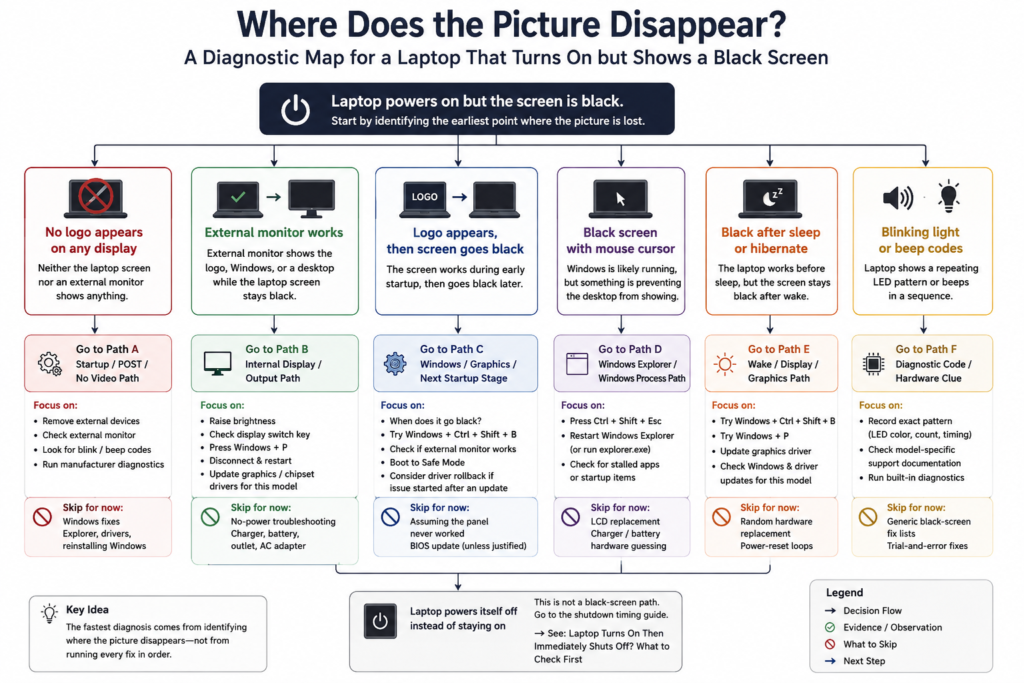
Laptop Turns On but Screen Is Black: Quick Answer
Start with the first image you can—or cannot—get.
No manufacturer logo ever appears
→ Check whether an external monitor shows anything. If neither display ever shows an image, stay on the startup/POST path instead of jumping into Windows fixes.
An external monitor works
→ The laptop is producing video. Focus on the internal display, backlight, display mode, or display-related driver path.
The manufacturer logo appears, then the screen goes black
→ The laptop has already made it farther through startup. Windows, the graphics driver, display output, or the next stage of boot becomes more relevant.
The black screen has a mouse cursor
→ Windows is probably far enough into startup that Windows Explorer, a driver, or another Windows process is worth checking.
The screen goes black after sleep or hibernate
→ Try the Windows graphics-driver reset and display-output checks before treating it as a dead LCD.
A light blinks repeatedly or the laptop beeps
→ Record the exact pattern and check the model-specific diagnostic code.
The laptop powers itself off instead of staying on
→ Stop using the black-screen path and diagnose the shutdown timing instead.
The most useful clue is not that the screen is black. It is the last thing the laptop successfully displayed.
In This Guide
Start Here: Match the Black-Screen Pattern
| What you see | What it tells you first | Skip for now | Go to |
|---|---|---|---|
| No logo on either laptop or external display | Video/startup has not been confirmed | Windows Explorer and normal driver fixes | Path A |
| External monitor works | Laptop can produce an image somewhere | Generic no-power troubleshooting | Path B |
| Logo appears, then black screen | Early startup/display worked | Repeating outlet/charger checks | Path C |
| Black screen with mouse cursor | Windows has progressed farther | LCD replacement assumptions | Path D |
| Black after sleep or wake | Display/graphics wake path is relevant | Random hardware replacement | Path E |
| Repeating blink or beep code | Built-in hardware diagnostic clue | Generic black-screen fixes | Path F |
Do not work through every path.
Match the laptop to the closest row first. Once one result clearly points toward a different problem, stop doing fixes meant for the old symptom.
Not sure which path matches your laptop? Use our interactive Laptop Power Diagnostic to narrow the problem down before trying more fixes.
Before You Force the Laptop Off
Take ten seconds and listen before holding the power button.
Ask yourself:
Does the fan keep running?
Do the keyboard or power lights stay on?
Can you hear normal Windows sounds?
Does Caps Lock or another indicator react when you press it?
Did you see a logo even briefly?
Is there a mouse cursor on the black screen?
Those details can tell you whether the laptop is completely stuck early in startup or whether the computer may already be running behind a display problem.
If the laptop shuts itself off within seconds, use the immediate-shutdown diagnostic guide instead.
Path A: No Logo Appears on Any Display
If the laptop stays powered on but you never see the manufacturer logo, do not assume Windows caused the problem.
Windows has not yet given you any evidence that it is involved.
First remove nonessential external devices such as USB drives, docks, printers, memory cards, and other accessories. Then restart the laptop once.
If the screen is still completely black, connect an external monitor or TV if you have one available.
If the External Monitor Is Black Too
If neither the laptop display nor the external display ever shows a logo, Windows shortcuts and Windows display-driver fixes are not the best place to start.
Look instead for startup clues:
- Repeating LED patterns
- Beep codes
- A logo that flashes only briefly
- A built-in hardware diagnostic that your manufacturer provides
If the laptop shows a diagnostic pattern, record it exactly before restarting again.
If pressing Power actually produces almost no response beyond a charging light, use the charging-light-but-won’t-start guide instead.
Path B: The External Monitor Works
This result is extremely useful.
If the external monitor shows the logo, Windows, or a normal desktop while the laptop screen stays black, the computer is clearly capable of producing video.
That moves the internal display side much higher on the list.
Before assuming the panel needs replacement:
- Raise the laptop’s screen brightness.
- Use the laptop’s display-switch key if your model has one.
- In Windows, press Windows + P and check the available display modes.
- Disconnect the external display and restart once.
- If Windows is usable on the external monitor, check the manufacturer’s recommended graphics and chipset updates for your exact model.
If the external display remains normal but the internal screen never shows anything, the display panel, backlight, internal display connection, or model-specific display hardware becomes more plausible than a general no-power problem.
Path C: The Logo Appears, Then the Screen Goes Black
This is a very different clue from “the screen never worked.”
If you can clearly see the manufacturer logo and the screen only goes black afterward, the panel was capable of displaying an image during early startup.
Now pay attention to exactly when the picture disappears.
Does it go black as Windows begins loading?
Does it happen after you sign in?
Did it begin immediately after a Windows or graphics-driver update?
Does an external monitor still work?
Try the Windows Graphics Reset
If Windows appears to be running, press:
Windows + Ctrl + Shift + B
The screen may flicker or you may hear a short response if Windows successfully resets the graphics driver.
This is a Windows-side test. Do not waste time repeating it on a laptop that never shows any evidence of reaching Windows.
If the Problem Started After an Update
If the screen works in Safe Mode but goes black during a normal Windows startup, the problem has moved away from a simple dead-display diagnosis.
Safe Mode starts Windows with a limited set of files and drivers, which makes it useful for narrowing down driver and startup problems.
From Windows Recovery Environment:
Troubleshoot
→ Advanced options
→ Startup Settings
→ Restart
→ Safe Mode
If a graphics-driver update immediately preceded the problem, use the driver options available for your exact system and consider rolling back the display driver if Windows offers that option.
Do not update the BIOS just because a generic black-screen article told you to. Firmware changes should be model-specific and justified by the manufacturer’s documentation for the problem you actually have.
Path D: The Screen Is Black but You Can See the Mouse Cursor
A visible mouse cursor is a big clue.
The display can clearly draw something, and Windows has progressed much farther than a laptop that never shows a logo.
Try:
Ctrl + Shift + Esc
If Task Manager appears, look for Windows Explorer.
If it is running:
→ Right-click Windows Explorer
→ Restart
If it is not listed:
→ Run new task
→ Type explorer.exe
→ Press Enter
If the desktop immediately appears after restarting Explorer, stop troubleshooting the LCD, charger, and battery.
You have already shown that the screen can display Windows and that the problem is occurring later in the Windows session.
Path E: The Screen Goes Black After Sleep or Hibernate
If the laptop was working normally before sleep and the screen stays black only after you wake it, treat that as its own symptom.
Start with:
Windows + Ctrl + Shift + B
Then try:
Windows + P
If the screen comes back after one of these, the useful clue is that the display or graphics state failed during wake—not that the laptop suddenly lost all power.
If this keeps happening, continue with the graphics-driver and Windows update path for the exact laptop rather than repeatedly power-resetting the machine.
Path F: The Laptop Beeps or a Light Blinks Repeatedly
A repeating diagnostic pattern changes the priority again.
Write down:
- Which LED is blinking
- The color
- The number of blinks
- Any long-versus-short pattern
- The number of beeps
- Whether the sequence repeats
Then use the support documentation for the exact laptop model.
Do not assume that “three blinks” means the same failure on every brand or model.
What You Can Skip Once You Know the Result
| If you already know this | Stop spending time on | Focus on |
|---|---|---|
| External monitor works normally | No-power troubleshooting | Internal display/output path |
| No logo appears on either display | Windows Explorer fixes | Startup/POST/no-video path |
| Logo appears before black screen | Assuming the panel never worked | Windows/graphics/next startup stage |
| Mouse cursor is visible | Charger and battery guessing | Windows process/driver path |
| Screen fails only after sleep | Random hardware replacement | Wake/display/graphics path |
| Blink or beep code repeats | Generic “10 black screen fixes” | Exact diagnostic code |
| Laptop turns itself off | Black-screen-only diagnosis | Shutdown timing |
When Windows Recovery Tools Become Relevant
Do not start here if the laptop never displays a logo.
Windows recovery tools become relevant only after the evidence suggests that the laptop is getting through early hardware startup and the problem occurs as Windows begins loading.
If Windows can reach Recovery Environment, Safe Mode is one of the most useful first tests because it starts Windows with a limited set of drivers and services.
If Windows itself is failing to start rather than merely failing to display the desktop, Startup Repair is another built-in recovery option.
When the Laptop Probably Needs Repair
Professional diagnosis becomes more reasonable when:
- The internal screen stays black but an external monitor consistently works after basic display checks.
- Neither internal nor external display shows anything before Windows starts.
- A manufacturer diagnostic code points to hardware failure.
- The screen or hinge area has obvious physical damage.
- The display cuts in and out when the lid moves.
- There is liquid damage, a burnt smell, unusual heat, or visible electrical damage.
- Important files are stored on the laptop and you do not have a current backup.
Do not buy a screen, motherboard, RAM, or graphics hardware just because one of those parts appears on a generic troubleshooting list.
The goal of this page is to narrow the failure domain—not pretend that a symptom alone identifies the exact failed component.
The Fastest Decision
Use this as the short version:
No logo anywhere
→ Stay on the startup / POST / no-video path.
External monitor works
→ Focus on the laptop’s internal display path.
Logo appears, then black
→ Focus on what happens as Windows or the next startup stage begins.
Black screen + mouse cursor
→ Check Windows Explorer and the Windows-side path.
Black only after sleep
→ Check graphics reset and display output first.
Blink or beep pattern
→ Decode the exact model-specific diagnostic code.
Laptop shuts itself off
→ Leave the black-screen path and diagnose the shutdown timing.
Common Questions
Why does my laptop turn on but the screen stay black?
The answer depends on how far startup gets. A laptop that never displays a logo, one that works on an external monitor, and one that shows a logo before going black are three different diagnostic situations. Separate those first before replacing parts or changing Windows.
What does it mean if an external monitor works?
It proves the laptop can produce an image outside the built-in display.
That makes the internal display path much more important, although it does not by itself prove that the LCD panel is the failed part.
Why do I see the laptop logo and then a black screen?
That tells you the screen was capable of displaying the early startup image.
The next useful question is what happens as Windows begins loading, whether an external monitor works, and whether Safe Mode changes the behavior.
What does a black screen with a cursor mean?
It points much farther into the Windows startup path than a completely blank screen before the manufacturer logo.
Try opening Task Manager and restarting Windows Explorer before treating it as a dead laptop display.
Should I reinstall Windows because the laptop screen is black?
Not as a first step.
First determine whether the laptop can display a manufacturer logo, whether an external monitor works, and whether Windows is actually running.
A Windows reinstall cannot fix a failed internal display and is irrelevant if the laptop is not getting far enough into startup.
Final Checklist
□ Check whether a manufacturer logo ever appears.
□ Raise the screen brightness.
□ Disconnect nonessential accessories.
□ Test an external monitor if one is available.
□ Note whether the external monitor shows a logo or Windows.
□ Use Windows + Ctrl + Shift + B only when Windows appears to be running.
□ Use Windows + P to check display-output mode when relevant.
□ If you see a cursor, try Task Manager and Windows Explorer.
□ Use Safe Mode when the evidence points toward a Windows or graphics-driver problem.
□ Record repeating blink or beep codes exactly.
□ Stop black-screen troubleshooting if the laptop actually shuts itself off.
□ Do not replace expensive hardware without evidence.
Related Guides
Laptop Won’t Turn On but Charging Light Is On? What to Check First
Laptop Turns On Then Immediately Shuts Off? What to Check First
Laptop Plugged In but Not Charging? What to Check First
Laptop Only Works When Plugged In? Diagnose the Battery Before Replacing It
Official Support References
HP: Computer Starts but the Screen Remains Blank
Dell: Troubleshoot Laptop Display Issues and Resolve Black Screen Problems
Dell: Resolve No Power, No POST, No Boot, or No Video Issues
Microsoft: Troubleshooting Blank Screens in Windows
Microsoft: Windows Startup Settings