A laptop that turns on and immediately shuts off is giving you one of the most useful troubleshooting clues: timing.
A machine that loses power before the manufacturer logo appears is not reaching the same point as one that shows the logo, begins loading Windows, and then shuts down.
And a laptop that stays on for ten minutes before suddenly powering off is a different problem again.
So don’t start by replacing the battery, reinstalling Windows, or trying every “laptop shuts off” fix you can find.
Turn the laptop on once, watch how far it gets, and match the shutdown timing below. That will tell you which troubleshooting path is worth your time—and which ones you can skip.
Laptop Turns On Then Immediately Shuts Off: Quick Answer
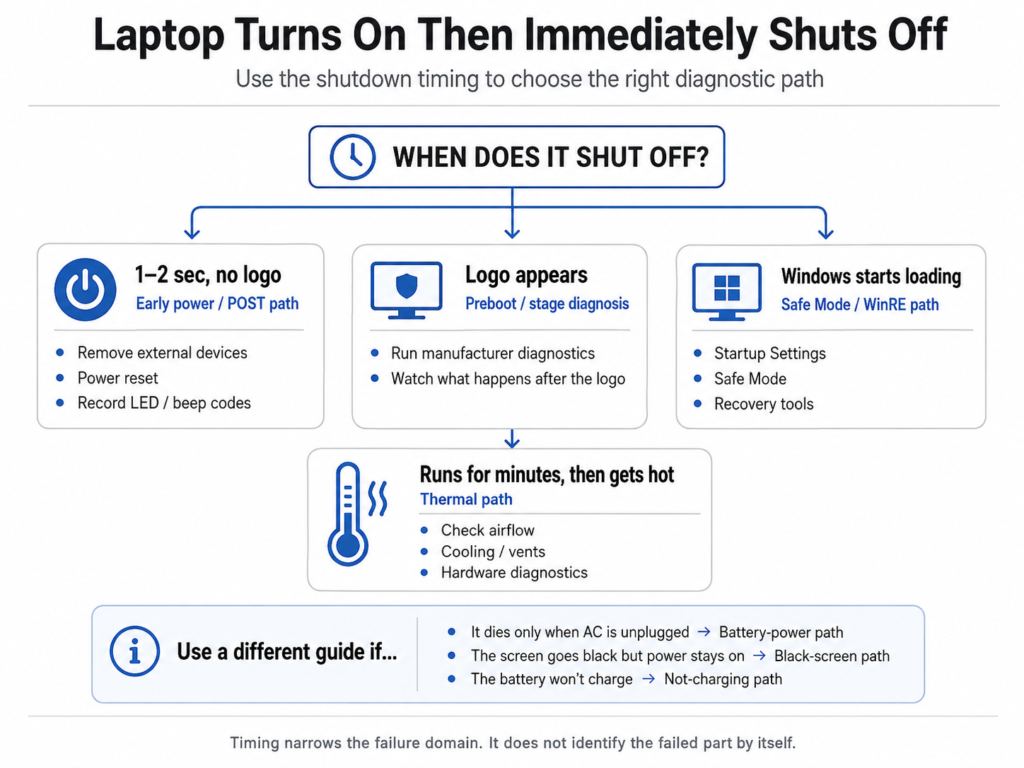
Start with when the shutdown happens:
Shuts off within a second or two, before any logo
→ Stay on the early power / POST path. Remove external devices, perform a power reset, record any diagnostic lights or beeps, and run built-in hardware diagnostics if the laptop can reach them.
Fan or keyboard lights come on for several seconds, but no logo appears
→ Look for POST clues and hardware diagnostic codes before touching Windows.
Manufacturer logo appears, then the laptop shuts off
→ The laptop reached farther into startup. Run the manufacturer’s preboot hardware diagnostics and note whether the shutdown happens before or after the logo disappears.
Windows begins loading, then the laptop shuts down or restarts
→ Windows recovery tools and Safe Mode become relevant, because the machine has already made it through earlier startup.
Laptop stays on for minutes, becomes unusually hot, then shuts down
→ Move toward the thermal / airflow / hardware-diagnostics path.
Laptop shuts off only when you unplug the charger
→ Leave this page and follow the laptop-only-works-when-plugged-in path.
Laptop does not shut down—the screen simply goes black
→ Leave this page and follow the black-screen diagnostic path.
How quickly the laptop shuts down does not identify the failed part—but it tells you which diagnostic path deserves your attention.
In This Guide
Start Here: Match the Shutdown Timing
| When it shuts off | What that changes | Skip for now | Go to |
|---|---|---|---|
| Within 1–2 seconds, before logo | Failure is very early in startup | Windows recovery and driver fixes | Path A |
| Fan/lights run, but no logo ever appears | POST/startup hardware needs attention | Windows troubleshooting | Path B |
| Manufacturer logo appears, then power cuts | Startup progressed farther | Treating laptop as completely dead | Path C |
| Windows begins loading, then shuts down/restarts | OS-stage troubleshooting becomes relevant | Repeating basic outlet checks | Path D |
| Runs for minutes, gets hot, then shuts down | Thermal/load pattern matters | Random Windows reset | Path E |
| Shuts off only when AC is removed | Battery-power path | Generic shutdown troubleshooting | Related battery guide |
Do not treat the time ranges as a component diagnosis.
They are a shortcut for figuring out how far the laptop gets before the failure occurs. Once the symptom clearly moves into another path, stop repeating fixes meant for an earlier stage.
Not sure which path matches your laptop? Use our interactive Laptop Power Diagnostic to narrow the problem down before trying more fixes.
Before You Keep Restarting It
Restart the laptop only as much as you need to identify the pattern.
Before the next attempt, write down:
- How many seconds it stays on
- Whether the fan starts
- Whether keyboard or power lights stay on
- Whether a manufacturer logo appears
- Whether you hear beeps
- Whether an LED flashes in a repeating pattern
- Whether Windows begins loading
- Whether the laptop feels unusually hot
- Whether the behavior changes on battery versus AC power
Those observations are more useful than repeatedly pressing the power button and hoping for a different result.
If the laptop becomes unusually hot, produces a burnt smell, shows battery swelling, or has visible electrical damage, stop testing and disconnect AC power.
Path A: It Shuts Off Within a Second or Two
If you press Power, see a flash of lights or a brief fan spin, and the laptop loses power before you ever see a manufacturer logo, stay out of Windows troubleshooting.
There is no evidence yet that Windows has even started.
First simplify the system.
Disconnect Everything Nonessential
Shut the laptop down and disconnect:
- USB drives
- Docks
- External monitors
- Memory cards
- Printers
- External hard drives
- Other accessories
Leave only the laptop and the correct power adapter, then try one startup.
Perform a Power Reset
If nothing changes:
- Disconnect the charger.
- Disconnect all external devices.
- Remove the battery only if the laptop is designed for user-removable battery access.
- Hold the power button for about 15 to 20 seconds.
- Reconnect AC power.
- Try one startup again.
Do not open the laptop just to disconnect an internal battery unless the manufacturer provides model-specific service instructions and you are comfortable following them.
Watch for a Diagnostic Pattern
If the laptop repeats the same blink or beep sequence before shutting off, stop treating that as random behavior.
Record the exact pattern and look it up for the exact model.
Do not assume the same number of blinks means the same failure across different brands.
Path B: Fan and Lights Come On, but No Logo Appears
This is slightly different from a one-second flash of power.
If the fan keeps running for several seconds, keyboard or power lights come on, but the laptop never reaches a manufacturer logo before shutting off, focus on POST and preboot hardware diagnostics.
Windows recovery is still premature.
Run the Manufacturer’s Preboot Diagnostics
Use the built-in diagnostic method for your laptop model if the machine stays on long enough to launch it.
For example, HP provides PC Hardware Diagnostics UEFI when Windows does not start. Dell systems may provide ePSA or SupportAssist preboot diagnostics.
If the test reports an error:
- Record the full error code
- Record any validation code
- Do not replace a random component before checking what the code actually means for your model
If the laptop instead stays powered on but the screen remains black, switch to our black-screen diagnostic guide.
Path C: The Manufacturer Logo Appears, Then It Shuts Off
Seeing the manufacturer logo matters.
It means the laptop has progressed farther than a machine that cuts power immediately after you press the button.
Now watch what happens after the logo.
Does the laptop shut off while the logo is still visible?
Does it shut off as the logo disappears?
Does a loading circle appear?
Does Windows begin loading?
Does an error message appear first?
Run the manufacturer’s preboot hardware diagnostics before assuming Windows is the cause.
If the diagnostics pass and the laptop consistently makes it past the logo before the failure, the next path depends on whether Windows actually begins loading.
Path D: Windows Begins Loading, Then the Laptop Shuts Down or Restarts
This is the point where Windows tools finally become relevant.
If you see the Windows loading animation, login screen, desktop, or a Windows error before the machine shuts down or restarts, you have evidence that the laptop completed more of the hardware startup process.
Do not jump straight to reinstalling Windows.
Try to determine whether the problem changes in Safe Mode first.
Try Safe Mode
From Windows Recovery Environment:
Troubleshoot
→ Advanced options
→ Startup Settings
→ Restart
→ Safe Mode
If the laptop stays on in Safe Mode but shuts down during a normal Windows startup, that is useful evidence that the normal software, driver, or startup environment deserves attention.
If the laptop still loses power in Safe Mode, do not assume Windows is the cause just because the Windows logo appeared.
If Windows Cannot Start Normally
Windows Recovery Environment also provides tools such as:
- Startup Repair
- Uninstall Updates
- System Restore
- Startup Settings
Use the tool that matches what changed or what is failing instead of immediately resetting or reinstalling Windows.
Path E: It Runs for a While, Gets Hot, Then Shuts Down
A laptop that runs normally for several minutes and then powers off—especially when the fan gets loud or the chassis becomes unusually hot—does not match the same pattern as a two-second startup failure.
Now the useful questions are:
Does it happen only during games, rendering, or other heavy workloads?
Does the fan become unusually loud first?
Are the vents blocked?
Does it happen sooner when the laptop is on a bed, blanket, couch, or another soft surface?
Does the problem disappear after the laptop cools down?
Start With Safe External Checks
Shut the laptop down and let it cool.
Then:
- Place it on a hard, flat surface
- Make sure the external vents are not covered
- Look for obvious dust buildup around the vents
- Listen for whether the fan runs when the laptop heats up
Do not open the cooling system or remove internal components just because the laptop feels hot.
Run Hardware Diagnostics
If the laptop stays on long enough, run the manufacturer’s hardware diagnostics and record any failure code.
A repeated thermal shutdown, failed fan test, or another hardware error is much stronger evidence than simply guessing that “the CPU is overheating.”
If the Laptop Shuts Off Only When You Unplug It
If the laptop stays on normally for as long as AC power is connected and shuts off only when the charger is removed, stop following the general shutdown path.
That symptom makes battery detection, battery health, and usable battery power much more relevant.
Use our laptop-only-works-when-plugged-in diagnostic guide before replacing the battery.
If the Battery Will Not Charge but the Laptop Stays On
If the laptop remains powered on normally but the battery percentage refuses to increase, this is no longer primarily a shutdown problem.
Use our plugged-in-but-not-charging guide instead.
What You Can Skip Once You Know the Timing
| If you already know this | Stop spending time on | Focus on |
|---|---|---|
| Dies before any logo | Safe Mode, Startup Repair, Windows drivers | Power / POST / preboot path |
| Fan/lights run but no logo | Windows reinstall | POST codes and hardware diagnostics |
| Logo appears before shutdown | Treating it as completely dead | Preboot test + what happens after logo |
| Windows begins loading | Repeating basic no-power checks | Safe Mode / WinRE / Windows-stage evidence |
| Runs for minutes and gets hot | Random bootloader fixes | Thermal / airflow / hardware diagnostics |
| Works indefinitely on AC but dies unplugged | General shutdown troubleshooting | Battery-power path |
| Screen goes black but power stays on | Shutdown troubleshooting | Black-screen path |
When the Laptop Probably Needs Repair
Professional diagnosis becomes more reasonable when:
- The laptop consistently loses power before the logo after external devices are removed and a power reset makes no difference.
- A repeating LED or beep code points to a hardware fault.
- A manufacturer hardware diagnostic reports an error.
- The laptop repeatedly shuts down from heat even with unobstructed external vents.
- The power connector is loose, damaged, or unusually hot.
- There is a burnt smell, liquid damage, swelling, or visible electrical damage.
- The laptop contains important files that are not backed up.
Do not buy RAM, a battery, a charger, or a motherboard just because one of those parts appears in a generic shutdown article.
Shutdown timing narrows the failure domain. It does not identify an expensive replacement part by itself.
The Fastest Decision
Use this as the short version:
Dies in 1–2 seconds before the logo
→ Early power / POST path.
Fan and lights stay on briefly but no logo
→ POST clues and preboot diagnostics.
Logo appears, then it shuts off
→ Run preboot diagnostics and watch exactly what happens after the logo.
Windows starts loading, then it shuts down or restarts
→ Safe Mode and Windows Recovery become relevant.
Runs for minutes, gets hot, then shuts down
→ Thermal / airflow / hardware-diagnostic path.
Works on AC but dies when unplugged
→ Battery-power path.
Screen goes black but laptop stays powered on
→ Black-screen path.
Common Questions
Why does my laptop turn on for a second and then shut off?
If the shutdown happens before any manufacturer logo appears, treat it as an early startup / POST problem first.
Disconnect nonessential devices, perform the appropriate power reset, record any diagnostic light or beep pattern, and use the manufacturer’s preboot diagnostics if available.
Does an immediate shutdown mean the motherboard is bad?
Not by itself.
A very early shutdown tells you the failure is happening early in startup, but it does not prove which component caused it.
Use model-specific diagnostic codes and built-in hardware tests before making an expensive parts decision.
Why does my laptop show the logo and then shut down?
That means the laptop progressed farther than a machine that loses power immediately.
Run the manufacturer’s preboot diagnostics and watch whether Windows begins loading after the logo. If Windows does begin loading, Windows-side troubleshooting becomes more relevant.
Can overheating make a laptop shut down?
Yes.
A thermal problem can cause intermittent shutdowns or restarts, especially when airflow is restricted or cooling cannot remove heat effectively.
That pattern usually looks different from a laptop that switches off almost immediately after Power is pressed.
Should I reinstall Windows if my laptop keeps shutting off?
Not unless the evidence points to the Windows stage.
If the laptop shuts off before the manufacturer logo, Windows is not the right starting point.
If Windows begins loading and the machine behaves differently in Safe Mode, Windows or its normal driver/startup environment becomes more relevant.
Final Checklist
□ Time how long the laptop stays on.
□ Note whether a manufacturer logo appears.
□ Record any repeating LED or beep pattern.
□ Disconnect nonessential external devices.
□ Perform a power reset when appropriate.
□ Run manufacturer preboot diagnostics if available.
□ Do not use Windows fixes before the laptop reaches the Windows stage.
□ Try Safe Mode when Windows begins loading before the failure.
□ Check external airflow if shutdown happens after heat builds up.
□ Leave this path if the laptop only dies when AC is removed.
□ Leave this path if the laptop stays powered but only the screen goes black.
□ Do not replace expensive parts based on shutdown timing alone.
Related Guides
Laptop Won’t Turn On but Charging Light Is On? What to Check First
Laptop Turns On but Screen Is Black? What to Check First
Laptop Plugged In but Not Charging? What to Check First
Laptop Only Works When Plugged In? Diagnose the Battery Before Replacing It
Official Support References
Dell: Resolve No Power, No POST, No Boot, or No Video Issues
Dell: How to Stop Laptop Overheating and Shutdown Issues
HP: Computer Does Not Turn On, Start, or Boot
Microsoft: Windows Recovery Environment
Microsoft: Windows Startup Settings and Safe Mode